Nếu nhà trường/tổ chức đã có website riêng thì nhà trường/tổ chức có thể cân nhắc tạo liên kết để người dùng mở ClassIn trực tiếp từ trang web của nhà trường/tổ chức.
Sử dụng API:https://classin.vn/huong-dan/url-tu-dong-mo-classin-va-dieu-huong-vao-lop-invoke-link/
Các cách mở ứng dụng ClassIn trực tiếp từ giao diện của nhà trường/ tổ chức
1. Dùng URL điều hướng mở ứng dụng ClassIn

- Trải nghiệm của người dùng:Chỉ cần nhấn vào 1 nút hoặc đường link trên giao diện của nhà trường/ tổ chức thì ứng dụng của ClassIn sẽ hiện lên và điều hướng người dùng vào lớp học. Nếu người dùng chưa cài đặt ứng dụng ClassIn trên thiết bị thì quá trình điều hướng sẽ không diễn ra. Vui lòng nhắc nhở người dùng cài đặt ứng dụng ClassIn trước.
- Mẫu:
2. Dùng URL điều hướng mở ứng dụng ClassIn có hiển thị giao diện trung gian
- Trải nghiệm của người dùng: Sau khi nhấn nút điều hướng từ giao diện của nhà trường/ tổ chức, giao diện trung gian thiết kế bởi ClassIn sẽ hiển thị để hướng dẫn người dùng tải app ClassIn nếu trên thiết bị của người dùng chưa cài đặt ClassIn. Nếu đã cài đặt rồi thì người dùng sẽ được điều hướng trực tiếp vào lớp học ảo.
- Mẫu:Use the intermediate page to invoke the ClassIn client for account 12345678901
- Mô tả:https://www.eeo.cn/client/invoke/index.html Liên kết này tương thích cho cả PC và thiết bị di động. Nếu người dùng chưa cài đặt ClassIn thì liên kết sẽ hiển thị giao diện cho phép người dùng tải và cài đặt, còn nếu người dùng đã cài ứng dụng ClassIn trên thiết bị thì giao diện sẽ hiện thông báo mở ứng dụng.
- Nếu bạn cần điều hướng người dùng vào một buổi học cụ thể, bạn cần điền thêm tất cả các tham số đã nhận sau khi gọi API vào phần sau của URL ‘https://www.eeo.cn/client/invoke/index.html‘, tham khảo ví dụ thứ 2:
<a href='https://www.eeo.cn/client/invoke/index.html'>Invoke the Client</a>
<a href="https://www.eeo.cn/client/invoke/index.html?telephone=12345678901&classId=1213545&courseId=394761&schoolId=1009478">Invoke the client from webpage for ClassIn account 12345678901</a>
Ghi chú:Giao diện trung gian hướng dẫn người dùng đã được tích hợp sẵn cho thiết bị iOS nên kể cả khi dùng URL trực tiếp của API thì người dùng iOS vẫn thấy được giao diện này.
3. Dùng URL điều hướng vào ứng dụng ClassIn mở giao diện của các hoạt động học tập LMS Course
- URL gốc: classin://www.eeo.cn/enterclass?autoCourseId=CourseId
- Mô tả: URL giúp điều hướng GV và HS nhanh chóng vào giao diện chứa các hoạt động LMS course của lớp
- Lưu ý: URL này chỉ hoạt động khi người dùng đã cài đặt ứng dụng ClassIn phiên bản 5.2.1 trở lên
Ví dụ mô tả
A. Mở ClassIn từ thiết bị iOS
1.1 Mở ClassIn trực tiếp từ H5 Page
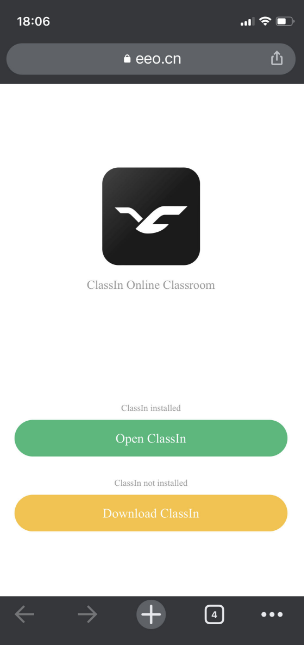
- URL mở ClassIn trên iOS mặc định hiển thị giao diện trung gian để hướng dẫn người dùng Mở hoặc Tải app. Giao diện như hình sau
1.2 Mở ClassIn từ ứng dụng của bên thứ 3
- Nếu bạn không muốn hiển thị giao diện trung gian của ClassIn: Sử dụng [UIApplication sharedApplication] để mở URL của API.
- Nếu bạn muốn mở ClassIn trực tiếp trong ứng dụng chứ không muốn hiển thị trình duyệt điều hướng: Hãy sử dụng webview để mở URL của API. Khi đó ClassIn sẽ được mở ngay trong app của nhà trường/ tổ chức mà không có trình duyệt trung gian hiển thị ra. Cũng có thể sử dụng trình duyệt tích hợp để mở liên kết trang trung gian và cài đặt UA thành Safari.
B. Mở ClassIn từ thiết bị Android
- Sử dụng URL invoke gốc được tạo sẵn của ClassIn để mở trực tiếp: classin://. Chúng tôi khuyến khích nhà trường/ tổ chức đặt URL invoke ở vị trí cụ thể trong trang và gán vào một nút để kích
- Sử dụng giao diện trung gian: https://www.eeo.cn/client/invoke/index.html yêu cầu người dùng mở bằng trình duyệt hoặc sử dụng webview tích hợp. Nếu muốn trang web tự động gọi ClassIn và vào thẳng lớp học, chỉ cần ghép các tham số cần thiết vào cuối URL như tham số điện thoại (telephone), mã khóa học (courseId), mã lớp (classId) và mã trường (schoolId).
C. Mở ClassIn từ máy tính PC/Laptop
- Sử dụng URL invoke gốc được tạo sẵn của ClassIn để mở trực tiếp: classin://. Chúng tôi khuyến khích nhà trường/ tổ chức đặt URL invoke ở vị trí cụ thể trong trang và gán vào một nút để kích
- Sử dụng giao diện trung gian: https://www.eeo.cn/client/invoke/index.html yêu cầu người dùng mở bằng trình duyệt hoặc sử dụng webview tích hợp. Nếu muốn trang web tự động gọi ClassIn và vào thẳng lớp học, chỉ cần ghép các tham số cần thiết vào cuối URL như tham số điện thoại (telephone), mã khóa học (courseId), mã lớp (classId) và mã trường (schoolId).
If your school already has a website, you can refer to the solution to invoke the ClassIn app from your page and add the feature of virtual classrooms to your website.
API:https://docs.eeo.cn/api/en/getLoginLinked.html
Three Types of Invoke Link Provided
1. Use the Original Invoke Link Generated via the API
- User Experience:One click to invoke the ClassIn app and enter the virtual classroom automatically. If the ClassIn app is not installed on the device, then the ClassIn app will not be invoked. Please remind the teachers and students to install the ClassIn app in advance.
- Effect Preview:
2. Use the Intermediate Page
- User Experience:The intermediate page, designed by ClassIn, will guide users to launch the client or prompt users to download the ClassIn client if the client fails to launch successfully. The link will directly lead users to enter the virtual classroom.
- Effect Preview:Use the intermediate page to invoke the ClassIn client for account 12345678901
- Description:https://www.eeo.cn/client/invoke/index.html This link, compatible for PC and mobile devices, is used to determine whether the user has installed the ClassIn client. If the client is stalled, the intermediate parameters will remind the user to open the client. If you also want the link to lead the users to the exact virtual classroom automatically, you need to add all the parameters returned by the above API to the end of ‘https://www.eeo.cn/client/invoke/index.html‘, as shown in the second line of code below:
<a href='https://www.eeo.cn/client/invoke/index.html'>Invoke the Client</a> <a href="https://www.eeo.cn/client/invoke/index.html?telephone=12345678901&classId=1213545&courseId=394761&schoolId=1009478">Invoke the client from webpage for ClassIn account 12345678901</a>Note:The invoke link for iOS devices already embeds with the intermediate page to guide the user to download or launch the ClassIn client.
3. Processed Link Launching the Client and Accessing the LMS Course Activity Interface
- Concatenation Rule: classin://www.eeo.cn/enterclass?autoCourseId=CourseId
- Function Description: This can be used to launch the client and directly access the course activity page, making it convenient for teachers and students to use the LMS features. If ClassIn client is not installed on the device, then the ClassIn client will not be invoked.
- Note: ClassIn needs to be updated to version 5.2.1 and launching from WeChat is not supported.
A. Invoke the ClassIn Client from iOS Devices
1.1 Invoke from an H5 Page
The invoke link generated for iOS devices is embeded with the intermediate page by default. The url can invoke the ClassIn client from Wechat automatically. If the ClassIn client is not installed on your device, you need to open it in the browser and follow the prompts to download the ClassIn client in the App Store.

1.2 Invoke from Third-party APP
If you prefer the intermediate page not shown Use
[UIApplication sharedApplication]to open the link of the intermediate page, the ClassIn client can be launched automatically.If you want to invoke the ClassIn client directly in your app without jumping to the browser: Use webview to open the link of the intermediate page. Then the intermediate page will be opened within the application without jumping to the browser; That is, you can use the built-in browser to open the intermediate page link and set the ua to Safari.
B. Invoke the ClassIn Client from Android Devices
- The invoke link for Android terminal does not have the intermediate page by default, and does not support directly invoking the ClassIn client on WeChat;
- Use the protocol header of the original invoke link:That is,
classin://. It is recommended to place the invoke link at the specified location in your page , and bind a button to invoke it. The original invoke link would not response when it is opened in WeChat. It is recommended to use the intermediate page demonstrated below. - Use the intermediate page to invoke the ClassIn client:
https://www.eeo.cn/client/invoke/index.html. You need to jump to the browser and open it or apply the built-in webview. If you want the link auto invoke the ClassIn client and lead users to the exact virtual classroom, you need to add the parameters of telephone, courseId, classId and schoolId after the address.
C. Invoke the ClassIn Client from PC Devices
- Use the protocol header of the original invoke link:That is,
classin://. Obtain the link through the API. The link can auto invoke the client and enter the exact virtual classroom. - Use the intermediate page to invoke the ClassIn client:That is,
https://www.eeo.cn/client/invoke/index.html,For the feature of auto invoke client and enter the exact virtual classroom, add parameters of telephone, courseId, classId and schoolId after the address.
